
1 Love and Light Center 1 Love and Light Center MacBook Windows
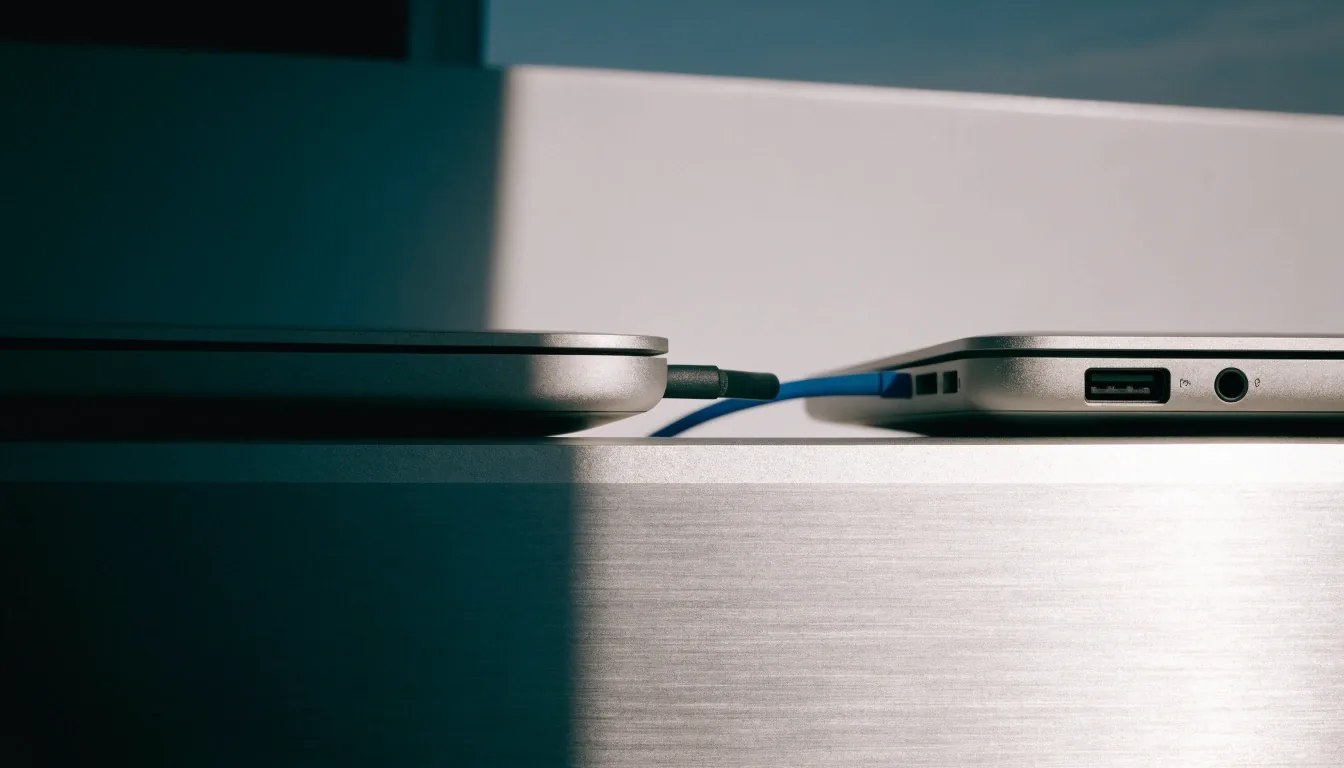
Two laptops bridged by one cable on a cool aluminium bench

Windows to Mac Migration Guide

Moving from Windows to Mac without losing workflow

Every pick checked on Mac and Windows. Your files, browser, office tools and passwords need a new home — this guide puts them in an order that keeps each step testable.

Tested by hand—Installed on Mac—Installed on Windows—Verdict named last

The order matters

Moving to Mac is mostly a compatibility project.

A few Windows-only apps may need a virtual machine or remote desktop. Everything else is a matter of choosing the right replacement first, then moving your data once — not twice.

We recommend this order: browser first, office tools second, passwords early, and Windows on Mac only where a specific app requires it. That sequence keeps the new MacBook familiar on day one, while the harder decisions wait until you know which apps actually matter to you.

Tested by hand—Installed on Mac—Installed on Windows—Verdict

Start with your list

List your actual Windows apps first

Write down the apps you use each week, not the ones you installed last year. Mark each one as native on Mac, cross-platform, or Windows-only. Safari, Pages and QuickTime Player cover browsing, writing and media by default. Microsoft Office for Mac covers office work. Chrome and Bitwarden travel across platforms. Anything left unmarked is your real Windows-on-Mac problem — usually a shorter list than you expected.

Mac side

Safari is built in, fast and battery-efficient on Mac hardware, and it is listed in migration guidance as the built-in alternative to Internet Explorer and Edge. Pages is Apple's native word processor, part of the standard Mac productivity stack. QuickTime Player comes with macOS and covers basic playback and screen recording.

Microsoft Office for Mac is the Mac counterpart to the Windows office suite, covering documents, spreadsheets and email. If your files are shared with Windows users, start here. If you are willing to move away from Windows document habits, test Pages with a real project before you commit.

Installed on Mac—Checked by hand

Windows side

Chrome keeps the same experience on Windows and macOS, which helps with web apps and developer testing. Pick one main browser — Safari or Chrome — before you move bookmarks and passwords, so you migrate once. Browser choice often decides whether a workflow feels native on Mac.

Bitwarden splits the difference: it keeps logins consistent across devices. Set it up on Windows first, confirm sync works, then sign in on the Mac. That order avoids saving new passwords in a browser on one machine and hunting for them on another.

Installed on Windows—Checked by hand
One bridge, not two silos

Passwords and playback

Set up Bitwarden before the move

Password migration is unglamorous and it prevents most day-one friction. When a MacBook setup means signing into dozens of services in a short period, consistent logins are the difference between a smooth first week and a week of password resets.

For media, start with what macOS already gives you. QuickTime Player is named in Mac migration guidance as the built-in alternative to Windows Media Player. Add a specialized player later only if a specific format or feature is missing.

We write about app compatibility for MacBook and Windows at 1 Love and Light Center, 27026 Maple Tree Ct, Valencia, CA 91381 — [email protected], Monday to Friday, 9:00 AM to 6:00 PM.

Cable joining two laptop edges on aluminium

Windows on Mac

If a Windows app has no Mac version, a virtual machine runs Windows on the Mac itself, as with VMware Fusion on Apple silicon Macs running Windows 11 on Arm. Remote desktop runs the app on a Windows machine and connects from the Mac. A VM gives local control and offline use. Remote desktop depends on a network connection and on the Windows machine staying available. Choose per app, not for the whole computer.

Apple silicon

Apple silicon Macs do not use Boot Camp, so Windows on Mac means virtualization or remote access. Software also needs to run on Arm hardware. Before you buy or install a VM tool, confirm the specific Windows app you need works in that environment. A VM that loads Windows is not the same as a VM that runs your app well.

Windows App

Windows App connects you to Windows desktops and apps, often remotely. Parallels Desktop and VMware Fusion run Windows as a virtual machine on the Mac itself. That distinction decides whether you need a Windows machine nearby or only a MacBook.

First week

A first-week checklist for new MacBook users

  1. Set up BitwardenConfirm sync works on Windows, then sign in on the Mac.
  2. Choose Safari or ChromeMove bookmarks once, in the browser you will actually keep.
  3. Office toolsInstall Microsoft Office for Mac or test Pages with a real document.
  4. Media and Windows-only appsPlay media with QuickTime Player. Only then, set up a virtual machine or remote desktop for the app that remains.

This order keeps each step testable, so a problem after step two is rarely caused by step five.

Questions

Before you move

Which Windows apps still need a virtual machine on Mac instead of a native Mac version?

Apps with no native Mac version, often specialized business or technical tools. VMware Fusion and other virtualization tools run Windows 11 on Arm on Apple silicon Macs, while remote desktop connects to a Windows machine instead.

What apps should someone install first after switching from Windows to Mac?

Your browser, either Safari or Chrome, then Microsoft Office for Mac or Pages for documents, and Bitwarden for passwords. Add Windows on Mac only for a specific app that needs it.

How does Windows App differ from Parallels Desktop or VMware Fusion?

Windows App connects you to Windows desktops and apps, often remotely. Parallels Desktop and VMware Fusion run Windows as a virtual machine on the Mac itself.

Tested by hand—Installed on Mac—Installed on Windows—Verdict